

Dashboards
Placing and arranging widgets
Add widgets to a screen, select, move and resize them, snap them into line, group them in containers, order them in the Layers panel, copy, align and undo.
What each kind of widget can show is in Widget types, and how a widget gets its value from the game in Showing live data.
Add a widget
A click with a tool instead of a drag gives the widget its starting size, centred where you clicked. You can also right-click an empty spot of the canvas and choose Add. A widget you draw goes into the innermost container that holds its whole box, or onto the screen when none does; a slot always goes onto the screen. When the dashboard already holds as many widgets of a kind as the board has room for, that tool is greyed out.
Select widgets
- A widget inside a container takes more than one click: the first click picks the outermost container, and a double-click takes you inside (Containers). Ctrl-click (Cmd-click on a Mac) picks the widget under the pointer directly, however deep it sits.
- A box dragged across an empty part of the canvas leaves out locked and hidden widgets. Hold Shift as you start to add to what is already selected.
The inspector always shows the widget you picked last, and what you change there applies to that one widget only.
Move and resize
- While you drag a handle, Shift keeps the proportions and Alt (Option on a Mac) resizes around the centre.
- The canvas keeps every widget on the display: you cannot drag one past an edge. Dragging a handle never makes a widget smaller than 8 × 8 pixels.
- Resizing changes the box only, unless Scale contents is ticked in the status bar.
- Press Escape during a drag to stop it where it is. Undo puts the widget back.
- In the Geometry group of the inspector, a position inside a container counts from the container’s top-left corner. Under Advanced, Z sets the drawing order among neighbours, from −32768 to 32767, though the Layers panel is the handier way.
- 1A pink guide: an edge or centre of the box lines up with this line.
- 2The neighbour it lined up with, outlined in amber.
- 3The gap to the nearest neighbour in pixels. It turns pink when it matches a gap the row already has.
Snapping
While you drag, the box snaps first to the edges and centres of its neighbours, of the container it is in and of the display; then to a gap the row already has; then to the grid. Neighbours are the widgets on the same level: on the screen, or in the same container. Each kind has a switch in the status bar.
The keys that change snapping (Mouse) work only once a drag has started. A key held as you click does something else: Shift changes the selection and Ctrl picks the deepest widget.
Nudge with the keyboard
Ctrl+Alt with an arrow (Cmd+Option on a Mac) resizes the selected widgets, keeping the top-left corner: right and down make them bigger, left and up smaller. Nudging does not snap, and it skips locked widgets. The other keys are in Keyboard shortcuts.
Containers
A container is a shape that holds other widgets. Whatever is inside moves with it, and positions inside count from its corner. It keeps a cluster together — a rev counter with its lights, say — and gives the cluster one background. A container cuts off whatever reaches past its edge while Clip contents in its Container group is ticked; untick it to let a caption hang over the edge.
Make a container
- Select the widgets and press Wrap above the canvas. A new rectangle appears around them, with Clip contents off. The widgets must share the same level, and a slot cannot be wrapped.
- Or drag a widget onto a shape. When the shape holds the widget’s whole box, its outline turns green and the widget drops inside. Any shape can take widgets, so a widget moved within a background shape becomes its child: hold Ctrl (Cmd) while you drag to keep the two separate.
- Or draw a new widget inside a shape.
Work inside a container
- Double-click a container to work inside it. Clicks now pick the widgets one level in, and Paste and Add put new widgets in this container.
- Press Escape to come back out a step at a time: with a widget inside selected, the first press selects the container and the next leaves it.
Take widgets out
- Drag a widget until no part of it touches its container: it drops onto the screen, or into another container that holds its whole box. A widget that still overlaps its container stays inside it, cut off at the edge if the container clips.
- Hold Ctrl (Cmd) while dragging to keep a widget in its container whatever happens. A drag of several widgets at once never changes their container.
- To dissolve a container, press Ctrl+Shift+G (Cmd+Shift+G). Its widgets stay where they are; the container is removed, with its background and border.
The Layers panel
The widget at the top of the list is drawn in front.
- Drop a row on the middle of a container’s row to move it inside, or on a slot’s Page row to move it onto that page. A drop that would break a limit is refused.
- Restacking only changes the order among widgets on the same level.
- New widgets get a generated name starting with
w; rename the ones something else points at, such as a slot a button turns. - A locked widget can still be selected here and changed in the inspector.
Copy, paste, duplicate and delete
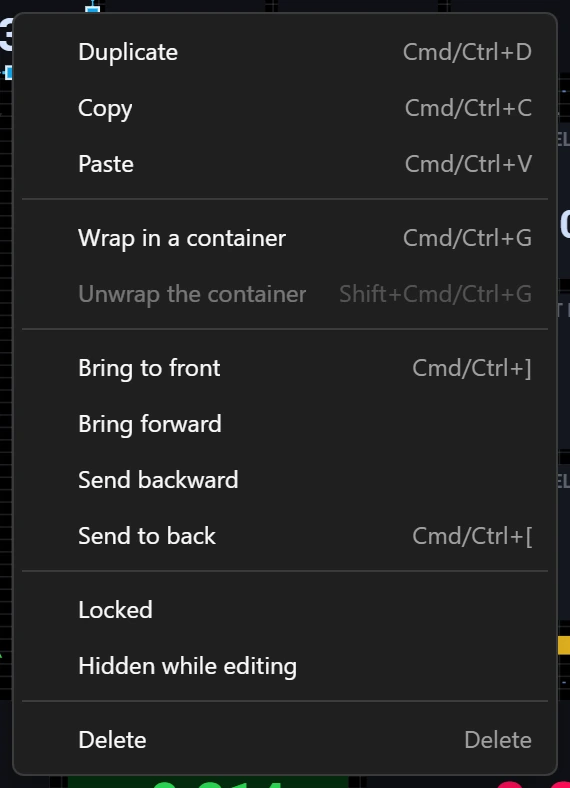
- Copied widgets go to the computer’s clipboard as text, with everything inside them, so you can paste them on another screen, into another dashboard, or keep them in a text file. Text from elsewhere is pasted only when it describes valid widgets for this board.
- A paste lands 8 pixels right and down from the original — in the container you are working in or have selected, otherwise on the screen.
- The Duplicate button copies each selected widget in its own container. Ctrl+D (Cmd+D) duplicates only the widget you picked last.
- Deleting a container deletes everything inside it.
- Copies get new generated names. A copy that would go over a limit is not made.
Align and distribute

- 1Space evenly across, and space evenly down. They need three widgets or more.
Aligning lines the widgets up with the outer edge or the middle of the whole selection. Spacing evenly keeps the first and the last widget where they are and shares out the room between them; when the widgets do not fit between those two, nothing moves. Locked widgets stay put.
Undo
A drag, or an arrow key held down, counts as one step. The configurator keeps the last 100 steps of the whole configuration, LED and button settings included. Starting a new dashboard, opening a file, using a template or loading the board’s configuration starts the history again. Nothing on the canvas asks for confirmation, because Undo takes it back.
Good to know
- Widgets are drawn container by container: everything inside a container comes in front of the container and behind the widgets drawn after it. To bring a widget in front of something in another container, take it out first.
- A widget its container cuts off completely gets an amber dashed outline on the canvas. It is still on the dashboard, can be selected and counts towards the limits, but the board shows nothing of it.
Limits
| What | Limit |
|---|---|
| Widgets directly on one screen | 255 |
| Widgets in one container, or on one page of a slot | 32 |
| Containers inside containers | A widget sits at most three containers deep |
| Widget name | 15 characters, unique on the dashboard |