

Dashboards
Fonts and icons
The fonts a dashboard uses: the library, Google Fonts, your own font files, weights, icons beside numbers, and what goes to the board when you save.
Every text on a dashboard — a widget’s value or its caption — names a font and a size. The board draws any size from one installed font file, so only the fonts take room on the board, never the sizes.
The font library
The configurator keeps a font library on your computer, shared by every dashboard you open. A font goes to the board only when a dashboard that uses it is saved.
One font is one weight. The board holds one file per family, so Roboto and Roboto Bold are two fonts, and each counts towards the 8 a dashboard can use.
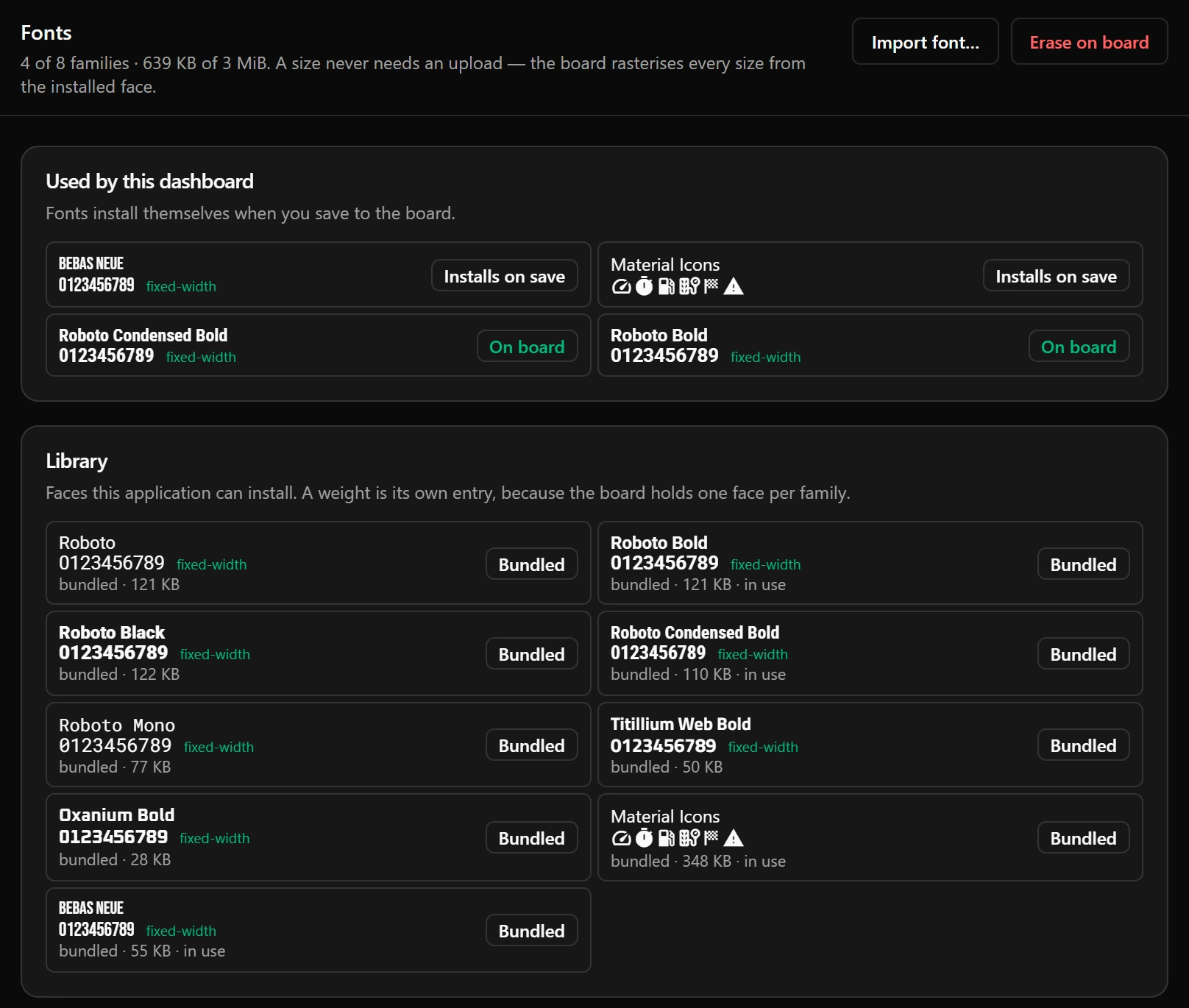
- 1Erase on board: see Remove a font.
- 2fixed-width means every digit is equally wide, so a changing number does not shift sideways.
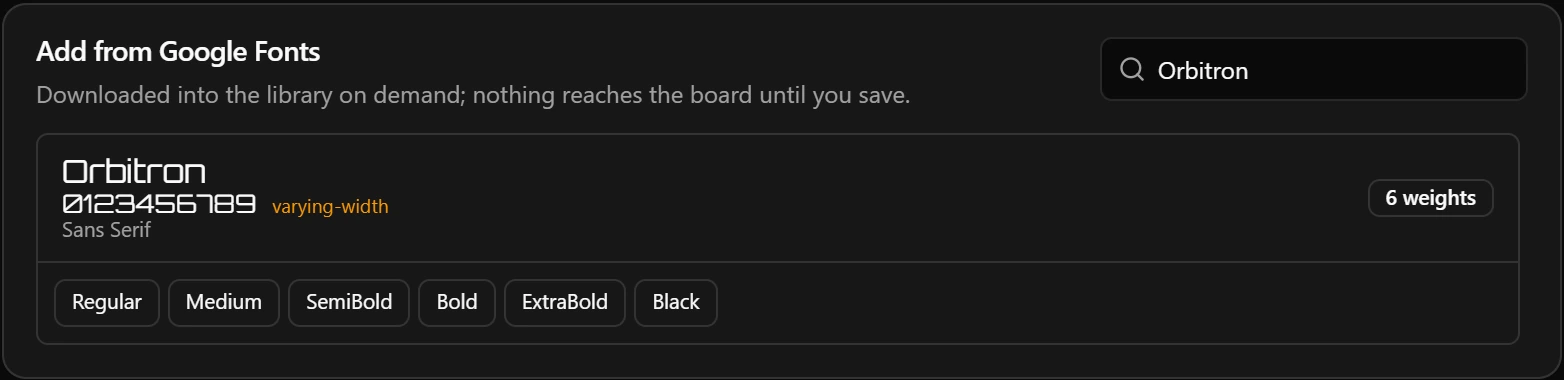
Add a font from Google Fonts
The configurator downloads a font only when you pick it, so the computer needs the internet at that moment. Italics are not in the list: import those as files.
Import your own font
The dashboard refers to a font by its id, which the configurator makes from the file name: lower case, with anything other than letters and digits turned into dashes, so MyFont-Bold.ttf becomes myfont-bold. An id has at most 31 characters, and a longer name is shortened. When the library already has a font with that id, the import is refused: rename the file and import it again.
Choose a font for a widget
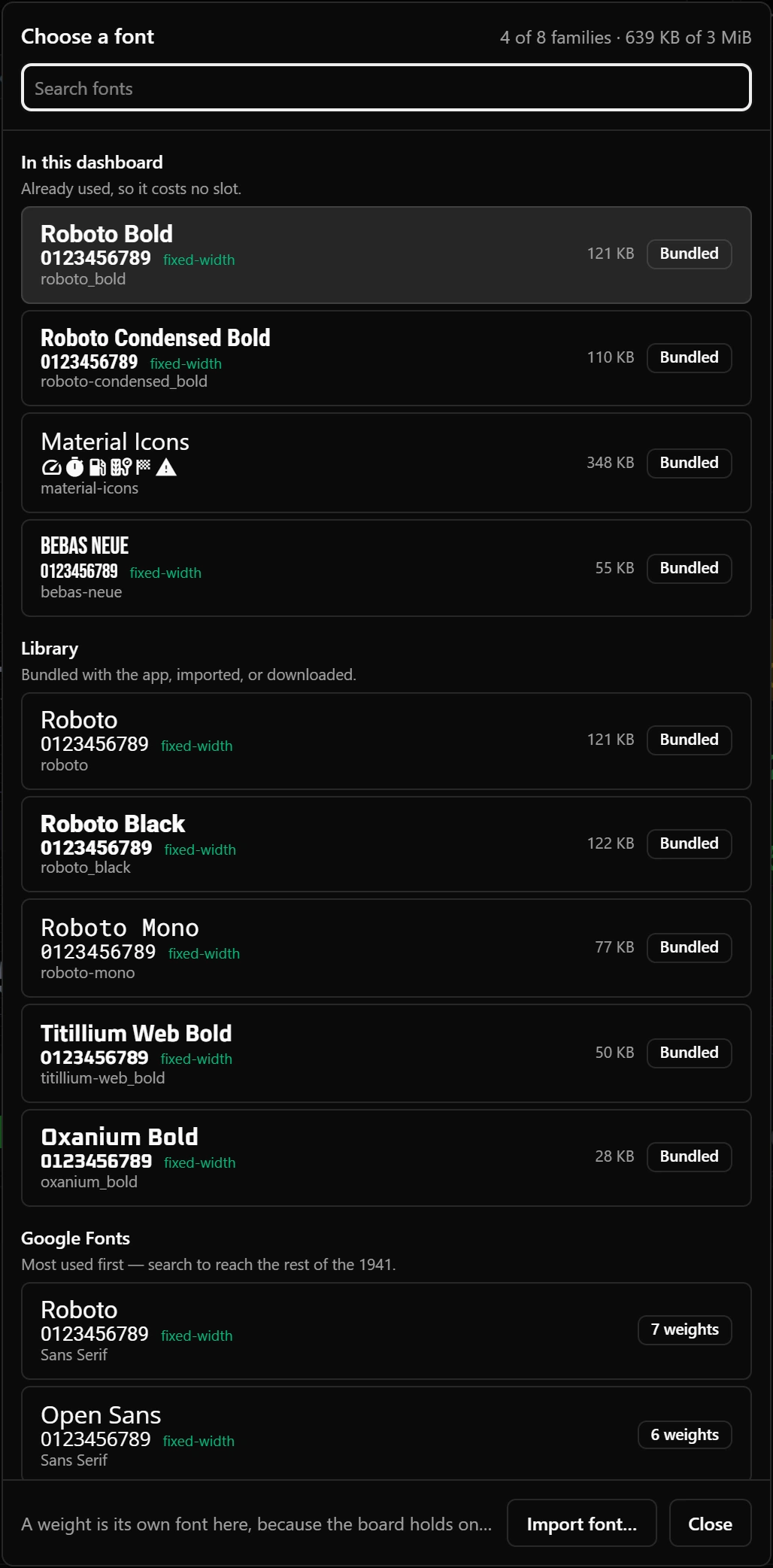
- 1In this dashboard: picking one of these costs nothing.
- 2Library: a greyed-out font would not fit on the board; hold the pointer over it to read why.
- 3Google Fonts: a weight you pick downloads and goes straight onto the widget.
New widgets start with the font set in New widgets.
Icons beside numbers
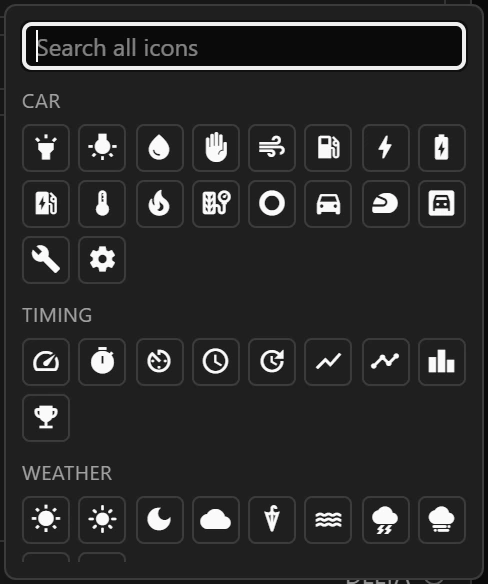
Icons come from Material Icons. In the inspector, the smiley button beside the Text of a Title, and beside the Prefix and Suffix of a value, opens them.
An icon draws only in Material Icons, so set the text up one of two ways:
- For an icon on its own, make Material Icons the font of that text.
- For an icon beside a number, keep a text font and add Material Icons as its fallback: press + Fallback family under the font and choose Material Icons. The board draws each character from the font when the font has it, and from the fallback when it does not, at the same size.
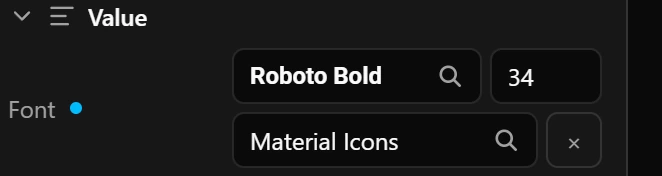
The fallback counts as one more of the 8 fonts. Without one, an icon in a text font draws as an empty box.
What happens when you save
Save to board brings the fonts along by itself and restarts the board for them: see What a save does, in order. Fonts travel only with a change to the dashboard: a save that changes only the LEDs or the link leaves the board’s fonts alone.
A font the library does not have
A dashboard made on another computer can name a font your library lacks. The Fonts tab marks it Not in library, the inspector shows Unresolved: with its id, and a save stops with this window. Nothing is written to the board until every font is found, or you choose another font for those widgets.
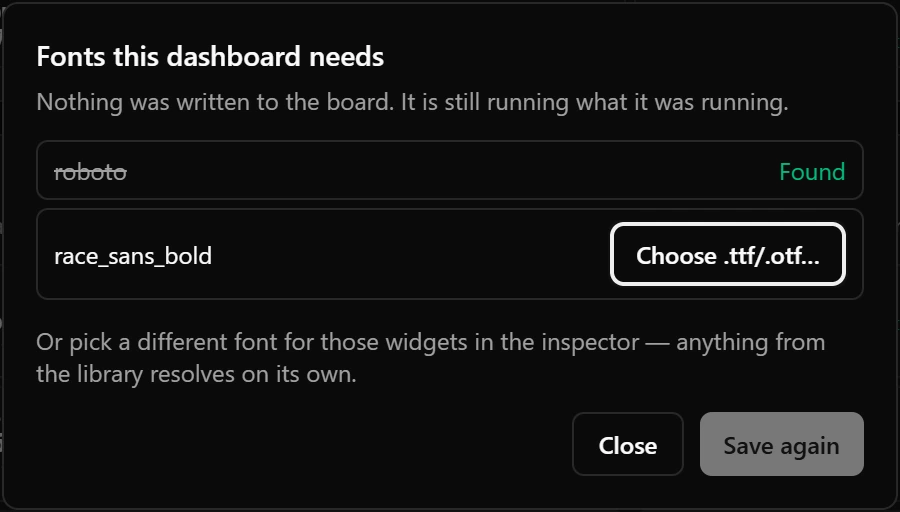
- 1Choose .ttf/.otf… imports a file under exactly that id.
Remove a font
- From the board: stop using it and save. The next package holds only the fonts the dashboard uses.
- Erase on board erases every font on the board, after asking. After its next restart the board cannot build its dashboard until fonts are installed again, and Save to board stays greyed out while the draft matches the board: change something in the dashboard, then save.
Good to know
- A dashboard with more than 8 fonts — from a pasted widget or a file — cannot be saved until you bring it down: Configuration references more than 8 font families.
- Two messages still speak of 2 MiB: Adding this face would push the font package past 2 MiB. and That face is larger than the whole 2 MiB font partition. The limit both check is 3 MiB.
- The library belongs to this computer. On another computer the same dashboard may need its fonts downloaded or imported again.
Limits
| What | Limit |
|---|---|
| Fonts per dashboard, fallbacks included | 8 |
| All fonts of a dashboard together | 3 MiB |
| Font size | 1 to 255 pixels |
| One font file | .ttf or .otf, 128 bytes to 3 MiB |
| Font id | Up to 31 characters: a–z, 0–9, - and _ |
| Fonts you import | 256 in the library, counting the ones downloaded from Google Fonts |