

Saving, files and updates
Link settings
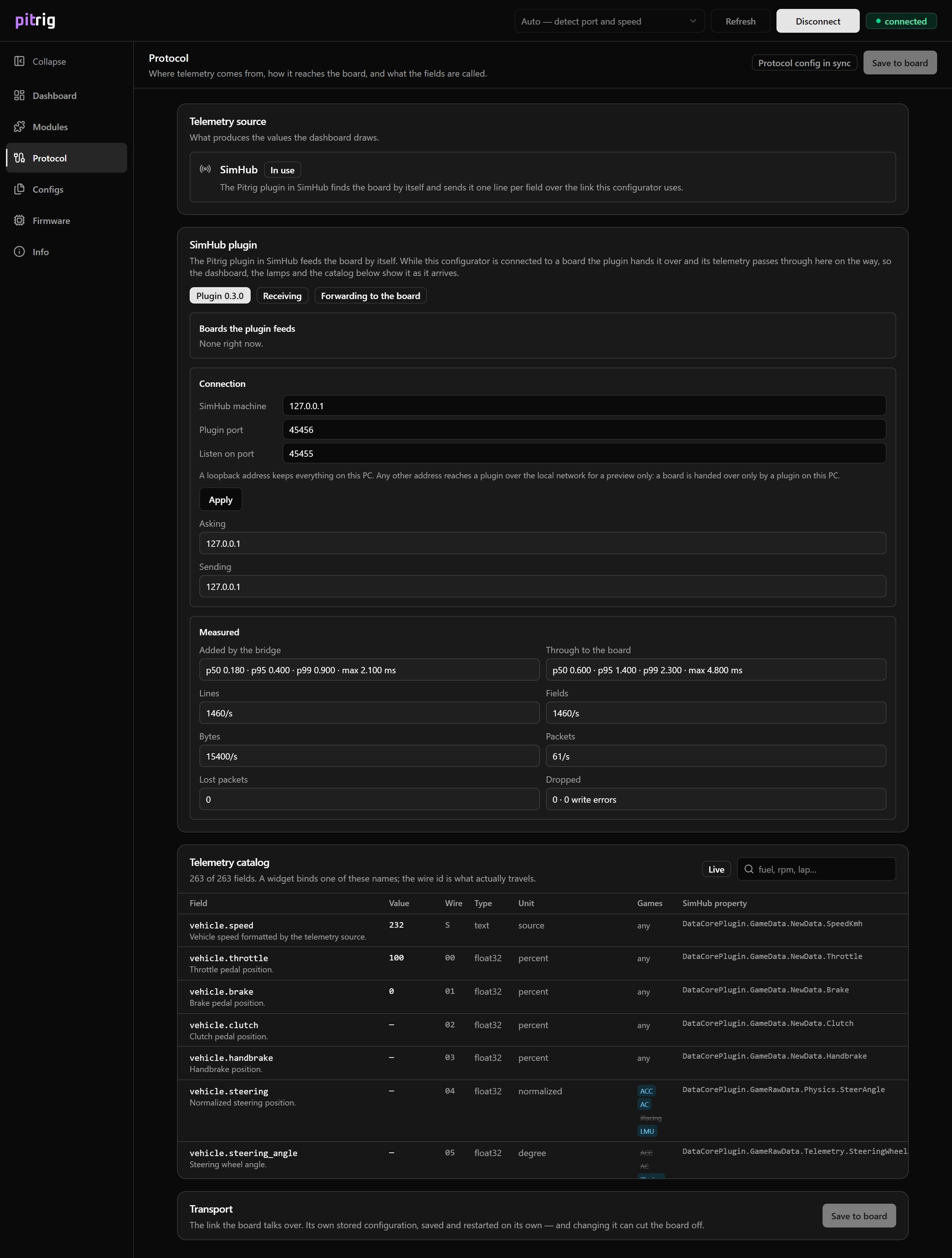
The Protocol page: how the SimHub plugin’s data reaches the configurator and the board, the full field list, and the link the board itself talks over.
Most setups never need a change on the Protocol page. It is for checking that data arrives, for a plugin on another port, and for a board that has to talk over another link.
- 1The chip: whether the board holds the link settings you see (Seeing what differs).
The SimHub plugin
The configurator starts listening for the plugin as soon as it opens, so the canvas, the LED preview and the field table all show its data. While it holds a board, the data passes through to the board.
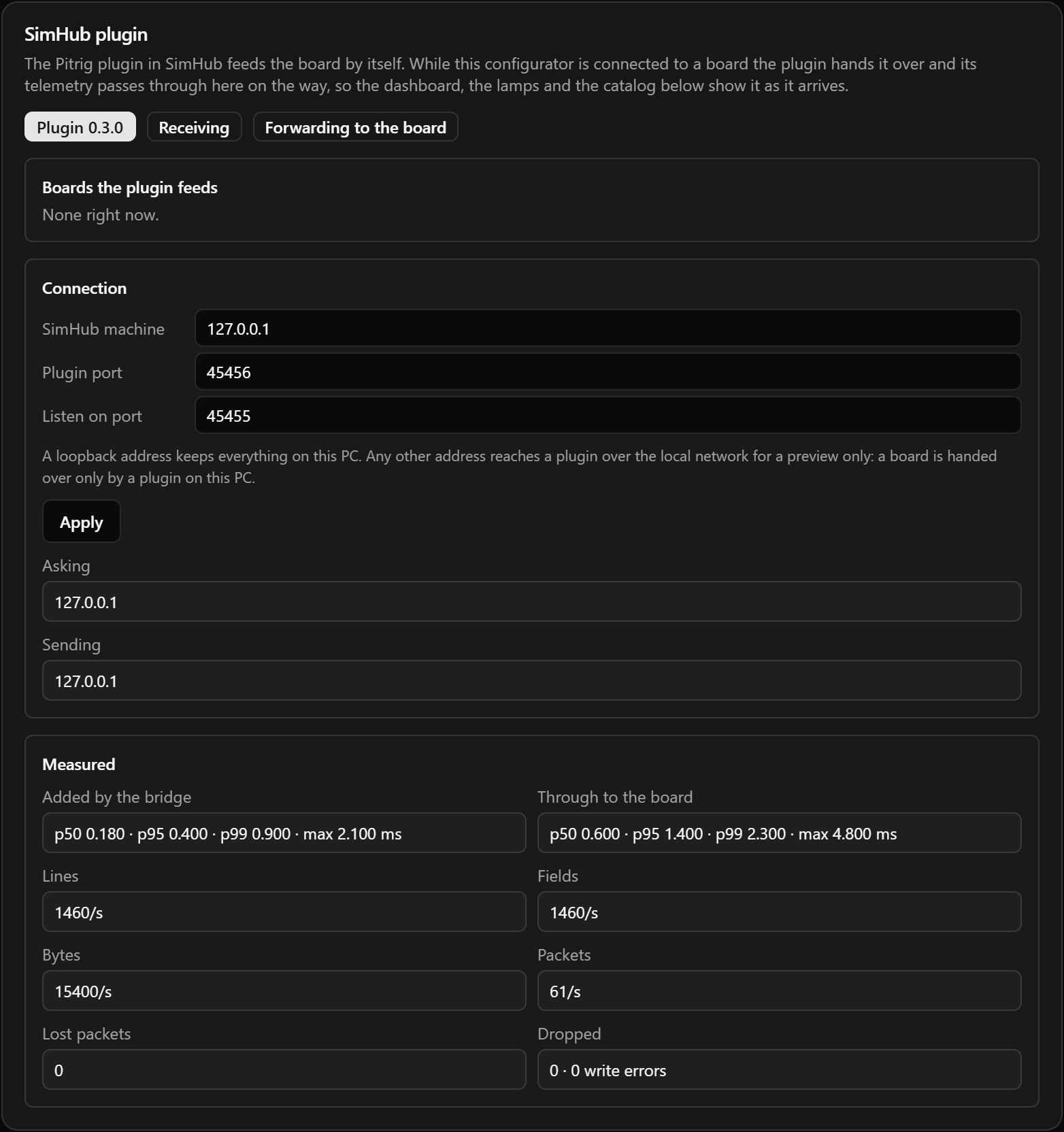
No plugin means nothing answers: SimHub is closed, or the plugin is missing or turned off. Held back while the board is busy means a save or an upload holds the link: data that arrives meanwhile is dropped, and the plugin repeats every value within a second.
The board the configurator is connected to is not in Boards the plugin feeds: the plugin has handed it over. A line in amber names a port another program holds, often an old Custom Serial device in SimHub: remove that device so the plugin can feed the board.
Connection
The configurator and the plugin talk over the network inside your PC, each listening on a numbered port. The defaults match; change them only when another program already uses one of the ports.
| Field | What it does |
|---|---|
| SimHub machine | 127.0.0.1 is this PC. The address of another PC on your network gives a preview only: a board is handed over only by a plugin on this PC. |
| Plugin port | It must match Listen port under ADVANCED on the plugin’s Settings tab in SimHub. |
| Asking, Sending | The address the configurator asks for data, and the address the data actually comes from. |
Measured
| Value | What it measures |
|---|---|
| Added by the bridge | The delay the configurator adds before passing data on, in milliseconds: typical (p50), slow (p95 and p99) and slowest (max). |
| Through to the board | The time from arrival until the data is written to the board, in the same form. |
| Dropped | Bytes not passed on, and failed writes to the board. |
The telemetry catalogue
The third section lists every field: see Showing live data.
Transport
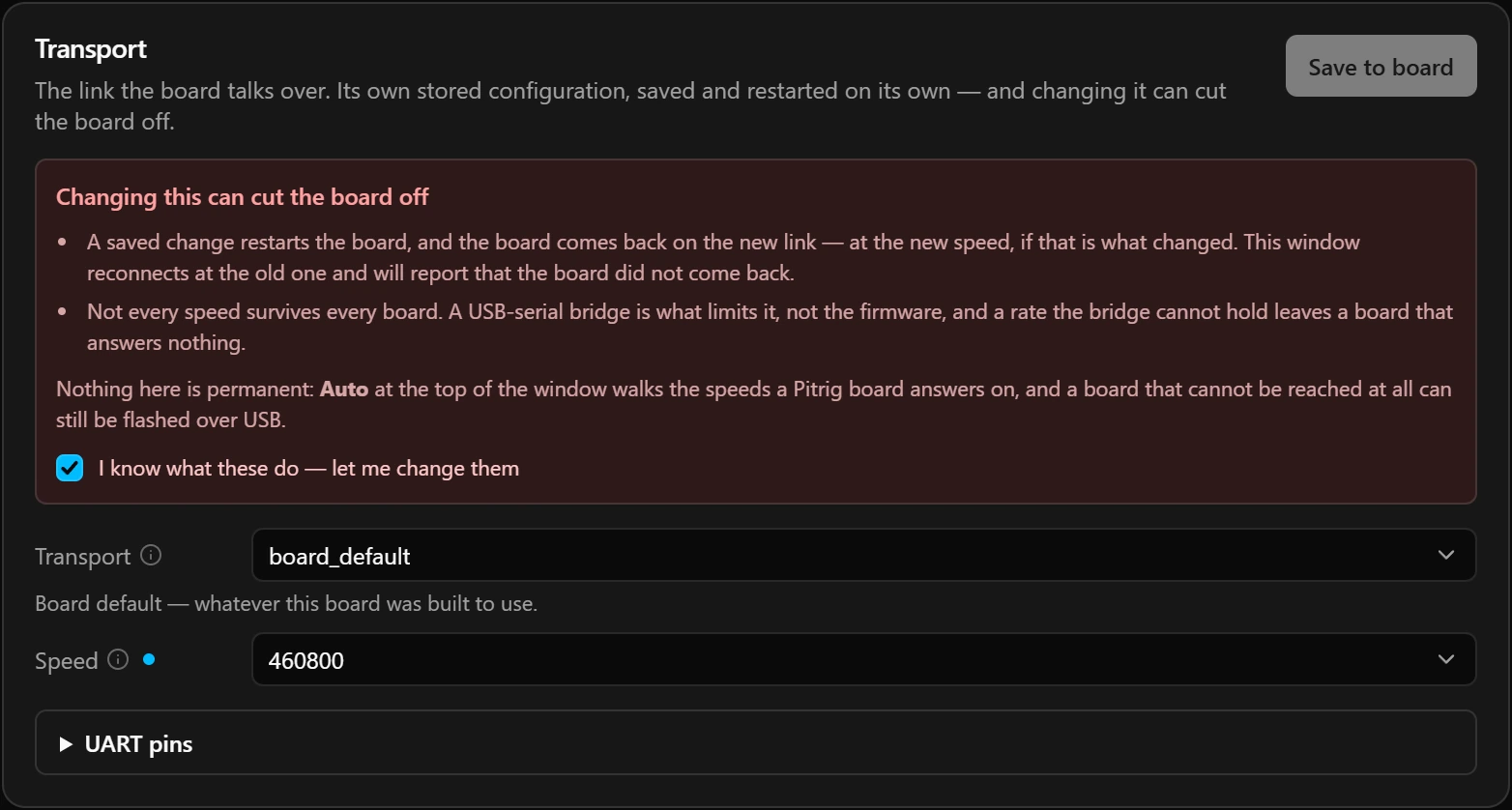
Transport is the link the board talks over, for game data and for the configurator alike: the chip’s own USB port, or its UART pins — a plain serial line that reaches the PC through a USB-serial chip. It is the board’s own stored setting, saved on its own, and a wrong one can leave a board you cannot reach. Its fields stay greyed out until you tick I know what these do — let me change them, and the tick lasts until you leave the page.
| Field | What it does |
|---|---|
| Transport | board_default (default): the link the firmware was built for. native_usb_cdc: the chip’s own USB port. uart: the board’s UART pins, reached through a USB-serial chip. The configurator refuses a link the board does not have. |
| Speed | 921600 when none is set. It matters only on a UART link: the chip’s own USB port ignores it. |
| TX pin, RX pin | Under UART pins: 43 and 44 are the board’s own pair. Leave them: the board talks on no other pins. |
| Silence ESP logs | On by default: keeps the firmware’s own messages off the link, where they would read as broken lines. |
| Board | Built-in link | Other choice |
|---|---|---|
| LilyGO T-Display-S3 | Its USB socket, the chip’s own USB | uart on pins 43 and 44, which its USB socket does not reach |
| Guition ESP32-4848S040 | uart through its CH340 USB-serial chip, at 460800 | None |
| Guition JC1060P470C | Its USB socket, the chip’s own USB | None |
| Espressif ESP32-S3-DevKitC-1 | Its USB socket marked USB, the chip’s own USB | uart on pins 43 and 44, reached through its socket marked UART |
What a change does
- Nothing changes on the board until you save. The board picks its link only when it starts, so saving a change restarts it, and it comes back on the new link — at the new speed, if the speed changed.
- The configurator reconnects at the old speed, so after a speed change on a UART link it reports that the board did not come back.
- Not every speed survives every board. The USB-serial chip sets the limit, not the firmware, and at a speed the chip cannot hold the board answers nothing. The CH340 of the Guition ESP32-4848S040 does not hold 921600: keep it at 460800, and do not clear its Speed, since no speed means 921600. A board in that state is reached again only by flashing.
- 1Save a copy of your configuration first with Ctrl+S or Cmd+S: the configurator keeps no copy of its own.
- 2Open Transport, tick I know what these do — let me change them, and change Transport or Speed.
- 3Press Save to board. The board restarts on the new link.
- 4If the configurator says the board did not come back, choose Auto — detect port and speed at the top of the window and press Connect. It tries every speed on every port.
- 5When you disconnect, the configurator hands the board back to the plugin together with the speed it found, so SimHub feeds it at the new speed.
To undo a change on a board you can still reach, set the fields back and save again. Or open Configs and press Reset on the Protocol row under Configs on the board: that erases the stored link, and Restart board brings back the built-in one. Your draft still holds the change, so press Load on the same row as well, or a later save writes it again.
A board you cannot reach
If Auto finds the board at no speed — a T-Display-S3 moved to uart, or an ESP32-4848S040 at a speed its CH340 cannot hold — the board itself is fine, but the link it stored leads where the cable does not reach. Install Pitrig on it again with the stored settings erased:
- 1Open the Flash page, pick the board, tick Erase device in the installer and install. Erasing clears the stored link, and with it the configuration, the fonts and the images on the board. See Flashing a board.
- 2In the configurator, open your configuration — the draft still open, or the file you saved — and put Transport and Speed back as they were, so saving does not cut the board off again.
- 3Connect the board. When the configurator says the board and the draft differ, choose Decide later — the board keeps running what it has.
- 4If the dashboard uses images, upload them again on the Images page: the board refuses a dashboard whose images it does not hold.
- 5Press Save to board. The fonts the dashboard needs are installed with it.
Limits
| What | Limit |
|---|---|
| Plugin port, Listen on port | 1024 to 65535 |
| Speed | 9600 to 921600, from the list |
| TX pin, RX pin | 0 to 63 |
| UART port | 0 to 2 |