

Dashboards
Screens and pages
Give a dashboard up to four screens, let part of a screen switch between pages with a slot, and choose how the driver moves between them on the board.
A screen is everything the display shows at one time, and a dashboard holds up to four. A slot switches part of a screen between pages. Putting widgets on a screen or a page is covered in Placing and arranging widgets.
Screens
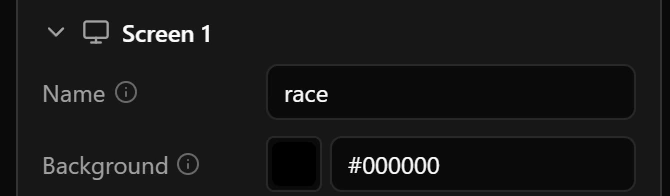
- Double-click a tab to rename the screen.
- Drag a tab to change the order. It is the order the driver swipes through, and the board starts on the first screen.
- − deletes the screen shown and everything on it. It does not ask: Undo brings it back.
- Click an empty spot of the canvas to edit the screen in the inspector.
Moving between screens on the board
| Way | How it works | Where to set it up |
|---|---|---|
| Swipe | Swipe left for the next screen, right for the one before; after the last screen comes the first. It needs a touch screen: the Guition ESP32-4848S040 and JC1060P470C have one, the T-Display-S3 does not. | Nothing to set up. |
| Tap | A widget with an action changes the screen when tapped. Touch screens only. | The Action group of the inspector, described below. |
| Wheel button | A button on your PC, on every board. | Buttons on your wheel. |
| Screen rule | A value brings a screen forward while it holds. | Screen rules. |
| Home | The dashboard goes back to its home screen. | Home. |
How the move looks is the dashboard’s Transition.
Tap zones and actions
A Tap zone is an invisible rectangle: drag one over the part of the screen the driver should tap, then choose On tap under Action in the inspector.
- 1On tap: the next and previous ones go round from the last screen to the first.
Any widget except a slot can take an action, not only a tap zone, and shows a green dashed outline on the canvas. A dashboard has room for 32; after that, On tap offers only none on widgets without an action.
Slots and pages
Each page holds its own widgets, placed inside the slot’s box. The slot itself draws nothing, so to give the area a background, put a shape behind it. A slot sits directly on a screen, never inside a container, and it cannot take a tap action: a tap already turns its pages.
Make a slot
- 1Double-click the slot, or press Edit pages on the canvas in its Pages group. The SLOTS group above the canvas gets a + for adding pages.
- 2Click a page number, then draw or drop widgets on the slot: they go onto the page shown.
- 3Press Close this slot, or Escape until you are out of it.
Page settings
| Field | What it does |
|---|---|
| In loop | A page out of the loop appears only through its trigger, which suits warnings. At least one page must stay in the loop. |
| Trigger | value_changed: pops up whenever the watched value changes, which suits settings such as the traction control level; the first value the board receives does not count as a change. conditions: pops up while one of its rules holds. |
| Watch | A page with a trigger needs one, or the dashboard cannot be saved. |
| Duration | How long the page stays up: after the last change for value_changed, after the rules stop holding for conditions. With rules, 0 keeps the page up only while a rule holds. value_changed needs more than 0. |
| Rule 1 to Rule 4 | The page pops up when any rule holds. |
| Dismissed until | What a Dismiss a raised page button does to this page while it is up: next_event keeps it away until its trigger fires anew, timed for Dismissed for, session until the board restarts or the game starts a new session. |
| First page after | On the slot itself: time without a tap or a button working on this slot before it goes back to its first page in the loop. 0 never does. |
What the driver sees
- The slot starts on its first page in the loop. A tap shows the next page in the loop, and after the last comes the first.
- A page with a trigger pops up over the loop while its event lasts. Then the slot goes back to the loop page it was showing.
- While a page is up, a tap on the slot does nothing. When two pages pop up at once, the one earlier in the list wins, so put the most important one first.
- Buttons and the switch can turn the pages too.
Good to know
- Renaming or deleting a screen updates the tap actions that lead to it — a deleted screen’s actions are removed — but not what the buttons name.
- Which page of a slot the canvas shows belongs to the editor, not to the board.
- Deleting a page never leaves a slot without a page in the loop: if the last one goes, the first page joins the loop.
- On the T-Display-S3 only buttons, screen rules and Home reach other screens and pages.
Limits
| What | Limit |
|---|---|
| Screens on a dashboard | 1 to 4 |
| Screen name | 15 characters, different from the other screens |
| Slots on a dashboard | 12 |
| Pages in a slot | 1 to 8 |
| Rules on one page | 4 |
| Duration | 0 to 10 000 ms |
| Dismissed for | 1 to 600 s |
| First page after | 0 to 600 s |
| Widgets that react to a tap | 32 on the whole dashboard |